
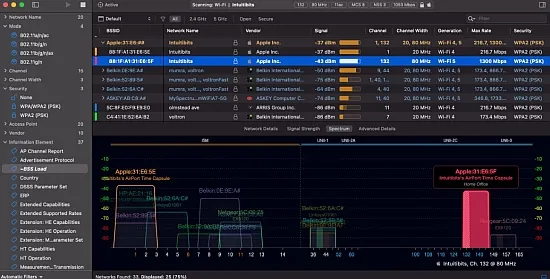
Intuitibits WiFi Explorer Pro 1.2.3.0 delivers a comprehensive view of any wireless environment, targeting network engineers, IT administrators, and advanced hobbyists. The application translates raw 802.11 data into a sortable, highly configurable table, allowing users to pinpoint configuration errors, performance bottlenecks, and sources of interference across small homes, office spaces, and large campus deployments.
Although the tool is available for macOS as WiFi Explorer Pro 3, this portable Windows edition runs on x64 systems and embraces the same feature set. It supports the full evolution of Wi‑Fi standards—from legacy 802.11n up through the emerging 802.11be—across the 2.4 GHz, 5 GHz, and 6 GHz spectra, handling channel widths as wide as 320 MHz.
Core Capabilities and Standards Support
The software recognises every Wi‑Fi generation, including Wi‑Fi 4, 5, 6, 6E, and the nascent Wi‑Fi 7, and can decode a spectrum of channel allocations from narrow 20 MHz slices to ultra‑wide 320 MHz blocks. This breadth ensures that both legacy devices and the latest high‑throughput radios are represented accurately in the scan results, giving a true picture of spectrum utilisation.
A key design principle is vendor neutrality; the analyzer extracts only what the radio and beacon frames disclose, without relying on proprietary controller APIs. Consequently, it works seamlessly in mixed‑vendor environments, making it a reliable companion for consultants who move between client sites that employ equipment from multiple manufacturers.
Scan Modes and Data Sources
WiFi Explorer Pro offers three primary scanning approaches, each suited to different investigative needs. Active scanning sends probe requests to elicit immediate responses, revealing even low‑signal SSIDs. Directed scanning narrows the focus to specific channels or network names, speeding up targeted diagnostics. Passive scanning simply listens to ambient beacons, providing a non‑intrusive snapshot that can uncover hidden networks and detailed management frames.
- Active scan – fast, comprehensive discovery of visible networks.
- Directed scan – concentrates on selected SSIDs or channels for deep analysis.
- Passive scan – silent listening for beacons, ideal for hidden SSID detection.
- External USB adapters – extend band and chipset coverage beyond the built‑in radio.
- Remote sensors – gather data from distant locations without a local adapter.
Visualization and Custom Columns
The central interface presents a table of detected networks, complemented by graphical plots that illustrate channel occupancy, signal strength trends, and bandwidth allocation. Users can group entries by SSID, physical access point, or vendor OUI, instantly revealing how a single network is spread across multiple radios or how specific manufacturers dominate a spectrum slice.
Beyond the default view, the application exposes more than 550 columns on macOS and over 850 on Windows, covering everything from basic RSSI values to intricate 802.11ax/11be information elements. Custom column profiles let users curate a focused set of fields—for example, a “Design” profile that highlights channel and PHY rates, or a “Security” profile that emphasizes authentication and encryption details.
Filtering, Rules, and Annotation Tools
Dynamic filters can be built with logical expressions on any column, enabling quick isolation of networks that meet specific criteria such as open security, high channel numbers, or SSIDs beginning with a particular prefix. Coupled with colour‑coding rules, problematic entries—like legacy 802.11b rates or insecure WEP configurations—stand out visually, accelerating the troubleshooting workflow.
Annotations allow engineers to tag networks or individual APs with notes that persist across scan sessions. Whether marking “Move to channel 36” or “Replace hardware in Warehouse #3,” these labels become part of the saved scan file, providing a documented audit trail for future reference or collaborative reviews.
Remote Sensors and Capture File Integration
The remote‑sensor feature abstracts the physical location of a scan, letting a Windows laptop pull data from sensors or access points positioned on distant floors or separate buildings. Results are presented exactly like a local scan, so the same filters, visualisations, and column setups apply without modification, facilitating multi‑site comparisons.
WiFi Explorer Pro also accepts external capture files in .pcap, .pcapng, or .pkt formats, as well as CSV exports from other Wi‑Fi utilities. Importing these files transforms raw packet dumps or CSV lists into the familiar table and graph layout, granting users the ability to analyse historic data, correlate findings from different tools, and generate professional reports without leaving the application.