
Ever opened a folder only to discover that dozens of photos or video clips are exact copies of each other? That scenario is common on Windows machines where users frequently import media from cameras, phones, or backup drives. Over time, redundant files can consume valuable storage and make organization a nightmare.
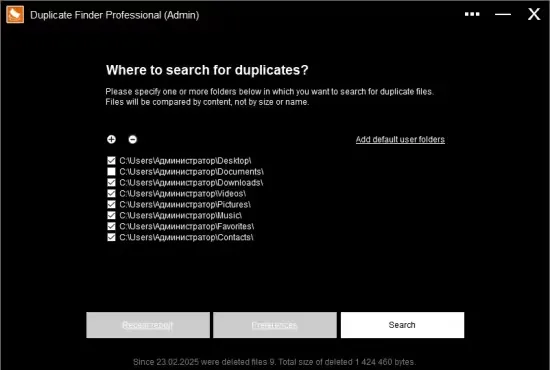
Duplicate Finder Pro 2026 v419 offers a quick, portable solution that scans any directory you point it at and highlights identical media. Because the program runs without installation, you can carry it on a USB stick and use it on any Windows PC.
Why duplicate media accumulate on modern PCs
Most people acquire pictures and videos in batches—think holiday trips, family events, or work projects. When those batches are copied to a computer, users often forget to delete the original files after moving them to a permanent location. Cloud sync services, automated backup utilities, and even Windows Update can also generate copies without the user’s knowledge.
The result is a bloated drive where a single image may exist in three or four places, each with a slightly different filename. Over months, this redundancy can add up to gigabytes of wasted space, slowing down searches and backups.
How the scanner pinpoints identical files
Duplicate Finder Pro relies on the MD5 checksum algorithm to compare file contents. Instead of looking at names, dates, or sizes, it generates a 128‑bit hash for every file and matches hashes that are identical. Because the hash reflects the exact binary data, two files with different names but the same visual content will still be flagged.
The program processes the selected folders in a few seconds, even when thousands of items are present. By focusing on content rather than metadata, it avoids false positives that arise from files that merely share a similar timestamp.
Navigating the streamlined interface
The UI is built for clarity, especially when the scan returns a large result set. At the top, you can add folders by dragging them into the list or by clicking the “Add Folder” button. Once the scan finishes, duplicates appear grouped by size category—large, medium, and small—so you can prioritize the biggest space‑savers first.
- Toggle size groups on or off to focus on a specific subset.
- Preview any file using the default Windows viewer or a plain‑text viewer for non‑media items.
- Open the file’s location directly in Windows Explorer for additional context.
- Send unwanted copies to the Recycle Bin, preserving a safety net for accidental deletions.
- Save the scan results; the next time you launch the tool, previous findings are reloaded automatically.
The combination of grouping, preview, and quick‑access buttons reduces the effort required to clean up a cluttered library.
Performance tips and what to expect
On a typical Windows 10 workstation, a full scan of a 200‑GB drive completes in under two minutes. The latest update introduced a lighter startup screen and refined the ListView rendering, which cuts down on UI lag when thousands of duplicates are displayed.
For best results, run the scanner on a local drive rather than a network share, and avoid launching other heavy applications simultaneously. The program uses modest RAM, so even older laptops can handle the workload without freezing.
Who benefits most from this portable utility
Photographers who regularly import raw images, video editors handling large footage libraries, and IT administrators tasked with maintaining clean workstations will find immediate value. Because the tool is portable, it can be used on public computers, shared workstations, or any machine that lacks administrative rights.
Casual users who simply want to reclaim a few gigabytes of space can also appreciate the one‑click scan and the safety of the Recycle Bin fallback. In every scenario, the emphasis is on speed, accuracy, and a low learning curve.