
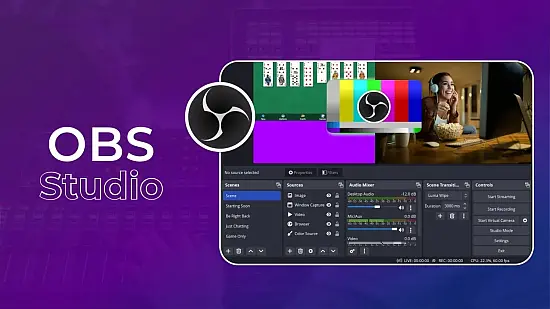
Whether you’re capturing a high‑octane gaming session, recording a tutorial, or streaming a live webinar, having a reliable engine that can juggle video, audio, and on‑screen graphics is essential. OBS Studio 32.2.1 delivers that capability in a single, free application that runs directly from a USB stick or external SSD, eliminating the need for a traditional install.
The portable build mirrors the full desktop version, preserving every advanced option while keeping the footprint light enough for laptops, school computers, or any Windows machine that meets the baseline specs.
Why OBS Studio Remains the Go‑To Broadcast Engine
Since its first release, OBS has cultivated a reputation for flexibility. It can operate as a simple screen recorder or evolve into a multi‑layer production suite with custom transitions, nested scenes, and dynamic overlays. This adaptability makes it attractive to hobbyists, professional streamers, and corporate presenters alike.
Unlike some commercial alternatives, the software is open‑source, meaning updates arrive regularly and the community contributes plugins that extend functionality far beyond the core package.
Building a Scene From Scratch
At the heart of OBS lies the concept of a “scene.” A scene is essentially a container that holds a collection of sources—each source representing a video feed, an image, a text block, or an audio channel. By arranging sources within a scene, you define exactly how the final output will appear.
For example, a typical gaming layout might consist of a game capture filling most of the canvas, a webcam window placed in the corner, and a lower‑third graphic displaying the streamer’s name. Switching to a “starting soon” scene could replace all those elements with a static background and a countdown timer, all without re‑configuring each source individually.
Managing Audio Channels With Precision
Audio handling in OBS Studio 32.2.1 receives the same granular attention as video. Each microphone, system sound, or auxiliary input appears as a separate track that can be muted, gain‑adjusted, or filtered independently.
Built‑in filters such as noise suppression, noise gate, and compressor let you clean up voice recordings on the fly. By routing sources to distinct mixer tracks, you can export a multi‑track file for later post‑production, or keep the mix balanced for a live audience.
Encoding Choices and Network Considerations
When streaming, the encoder translates raw video into a compressed stream suitable for platforms like Twitch, YouTube, or custom RTMP endpoints. OBS 32.2.1 supports both software (x264) and hardware (NVENC, AMD VCE, Intel QSV) encoders, letting you pick the method that best matches your GPU and CPU capabilities.
Bitrate, keyframe interval, and preset settings are all exposed, so you can fine‑tune the output to fit a modest upload speed or push for ultra‑high‑definition quality. The real‑time preview window lets you verify that the chosen settings produce a clean picture before you go live.
Practical Tips for a Smooth Live Session
- Test every source a few minutes before the broadcast; the preview pane will show missing captures instantly.
- Assign hotkeys for scene changes and mute toggles to avoid fumbling with mouse clicks during a fast‑paced stream.
- Enable the “Enable Replay Buffer” option if you want to capture highlights without recording the entire session.
- Regularly update the portable package; the community frequently releases patches that improve encoder stability.
Finally, remember that OBS works well alongside other broadcast tools. Users often pair it with Streamlabs OBS for integrated donation alerts, or with XSplit and vMix when they need specialized hardware support. The modular nature of scenes and sources makes it simple to import or export configurations across these platforms.
With its robust set of features, lightweight footprint, and zero‑cost licensing, OBS Studio 32.2.1 remains a cornerstone for anyone looking to produce high‑quality video content on the go.