
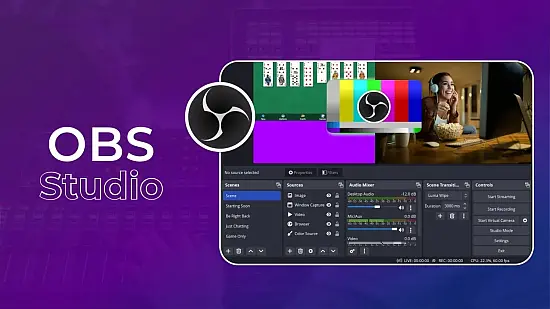
If you need a versatile tool that can record tutorials, stream gameplay, or broadcast a live workshop without installing anything, OBS Studio 32.2.1 offers a full‑featured solution that runs directly from a USB stick or a cloud folder. The portable edition keeps all settings and plug‑ins beside the executable, so you can move between computers and retain your custom layouts.
Unlike many one‑click recorders, this version builds a production‑style environment where you decide exactly what the audience sees, hears, and when transitions happen. Whether you are a solo creator or part of a small team, the software scales from a single‑window capture to a multi‑source broadcast.
Constructing a Live Production with Scenes
The heart of OBS Studio lies in its “scenes.” A scene is a named canvas that aggregates any number of sources—webcam video, game capture, screen window, image overlay, or text field. By swapping scenes you can instantly change the entire visual layout without stopping the stream.
For example, a “Game” scene may place a full‑screen game capture on the left, a webcam portrait on the right, and a small ticker at the bottom. A “Starting Soon” scene could replace everything with a static graphic and a countdown timer. Switching is possible via mouse clicks, hotkeys, or external controllers, giving you the flexibility to react to live events.
Managing Audio Streams Effectively
Audio receives its own mixer panel, where each input—microphone, desktop sound, or auxiliary line‑in—appears as a separate track. You can adjust gain, mute, or route a source to a monitor output, which is essential for keeping commentary clear while background music stays balanced.
Built‑in filters let you clean up the signal on the fly. Common choices include noise suppression, noise gate, equalizer, and compressor. Applying a noise suppression filter can dramatically reduce fan noise from a laptop, while a compressor smooths out sudden spikes in voice volume.
Optimizing Encoding for Different Setups
Encoding determines how the raw video is compressed before it reaches a file or a streaming service. OBS Studio 32.2.1 supports both software (x264) and hardware (NVENC, AMD VCE, Intel QSV) encoders, giving you the ability to match the workload to your GPU or CPU.
You can set a target bitrate, choose a preset that balances quality against CPU usage, and enable two‑pass recording for higher fidelity. On a modest laptop, a lower preset with a 2500 kbps bitrate may produce smooth 720p streams, while a high‑end workstation can push 6000 kbps at 1080p60 with a very low preset.
Integrating Browser Overlays and Dynamic Content
One of the most powerful extensions to a portable workflow is the browser source. By pointing the source at a URL that hosts HTML, CSS, and JavaScript, you can inject live chat, follower alerts, or animated widgets directly into any scene.
Because the browser source updates in real time, you never need to pause the broadcast to swap a graphic. Many creators pair this with services that generate JSON feeds for subscriber counts, allowing the overlay to reflect the latest data automatically.
Portable Workflow Tips and Common Pitfalls
Running OBS from a removable drive is convenient, but it also introduces a few considerations. First, ensure the host PC meets the minimum requirements: a 64‑bit Windows 10/11 system, at least a dual‑core processor, 4 GB RAM, and a GPU that supports the chosen encoder. Second, avoid writing large video files to slow flash drives; use the host’s internal SSD for recordings whenever possible.
- Keep the portable folder on an SSD for faster source loading.
- Save scene collections and profiles in the same directory to preserve them across machines.
- Test hotkey assignments on each new computer, as key mappings may differ.
- If you encounter black screens in game capture, run OBS as administrator.
Finally, compare OBS Studio with alternatives such as Streamlabs OBS or XSplit. While those platforms bundle extra services, the portable edition of OBS remains completely free, open‑source, and highly customizable, making it a reliable backbone for any Windows‑based broadcasting need.