
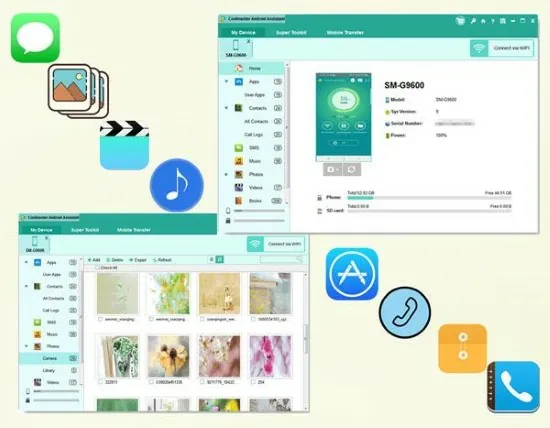
Managing an Android handset solely from its tiny screen can become a chore when the device holds years of contacts, messages, photos and apps. Coolmuster Android Assistant 6.1.60 offers a desktop‑centric alternative, letting you treat the phone as an extension of your PC workspace. The program runs from a self‑contained folder, so you can carry it on a USB stick and launch it on any Windows machine without a formal installation.
Whether you are preparing a phone for resale, migrating to a new device, or simply trying to tidy a cluttered media library, the tool provides a larger canvas for inspection and action. Because all operations happen on the computer, you gain the ability to sort, filter and edit large data sets with a mouse and keyboard – something that is far less comfortable on a handheld screen.
Why a PC‑Based Android Manager Matters
The core purpose of Coolmuster Android Assistant is to act as a bridge between Android storage and a Windows desktop. By exposing contacts, call logs, SMS/MMS, photos, videos and installed applications in tabular form, the software lets you perform bulk actions that would otherwise require repetitive tapping on the phone. This approach is especially valuable for power users, IT support staff, and anyone who needs to audit mobile data before a major operation such as a factory reset.
A typical workflow might start with connecting the device via USB, letting the program enumerate the contents, and then selecting the categories you wish to manipulate. Because the interface resembles familiar file‑manager layouts, you can drag‑and‑drop, use right‑click context menus, and apply multi‑select commands without learning a new mobile‑only UI.
Backup and Restore: A Structured Safety Net
One of the most compelling features is the ability to create comprehensive backups on the fly. You can choose to back up the entire device or pick specific sections such as contacts, messages, or media folders. The resulting files are stored on your PC in an organized directory, making future retrieval straightforward.
When the time comes to move to a new handset or recover after a system crash, the restore function mirrors the backup process. Instead of re‑entering each contact or manually copying photos, you point the program at the saved folder and let it push the data back to the Android device in a single, controlled operation. This reduces the risk of missing items and saves considerable time.
Contacts and Messages: Editing Beyond the Phone
The contact manager inside Coolmuster Android Assistant presents every address‑book entry in a spreadsheet‑like view. From there you can edit names, merge duplicates, delete outdated numbers, or export the list to a CSV file for external use. The same principle applies to SMS and MMS archives, which appear as searchable tables. You can filter conversations by date, keyword, or sender, then export important threads for legal or archival reasons.
These capabilities become especially handy during device migration. Rather than relying on the phone’s built‑in transfer wizard, you can export the full contact and message database, verify its completeness on the PC, and then import it into the new handset with confidence that nothing was lost.
Media & File Transfer Made Simple
Photos, videos, music tracks and other files tend to accumulate quickly on Android phones. Coolmuster Android Assistant provides a clear pane where each media type is listed with its size, date and format, allowing you to select groups for export or deletion. The program also supports batch renaming, which can be useful for organizing screenshots or voice recordings before they are archived.
- Export selected photos to a chosen folder on the PC.
- Move large video files to external storage to free up phone space.
- Copy music collections for backup or playlist creation.
- Delete unwanted files in bulk using checkboxes.
- Rename groups of files with a custom prefix or suffix.
Because the operation occurs on a full‑size monitor, you can preview thumbnails, compare file dates and decide what to keep without the pinch‑zoom constraints of a mobile screen.
System Requirements and Performance Notes
Coolmuster Android Assistant 6.1.60 runs on Windows 7, 8, 8.1, 10 and 11 (both 32‑bit and 64‑bit). The portable version requires at least 2 GB of RAM and 150 MB of free disk space for the program itself; additional space is needed for backups, which depend on the amount of data you choose to save. A USB 2.0 or higher connection is mandatory for reliable device communication.
In typical usage, the application responds quickly when browsing contacts or messages, while large media transfers naturally take longer. Users have reported smooth operation even on modest laptops, provided that the USB driver for the Android device is up to date. The tool does not install background services, which helps keep the system footprint low.
For those comparing alternatives, utilities such as MobiKin Assistant and Dr.Fone offer similar feature sets, but Coolmuster Android Assistant distinguishes itself with a truly portable package and a straightforward, ad‑free interface.