
Moving from an old smartphone to a newer model often feels like a juggling act, especially when the two devices belong to different ecosystems. Whether you are swapping an Android handset for an iPhone, upgrading within the same platform, or simply need a quick copy of your media library, the process can become cumbersome without the right tool. Coolmuster Mobile Transfer 4.1.22 offers a self‑contained solution that runs from a Windows PC and eliminates the need for cloud services or temporary storage.
The program operates as a bridge between two phones that are plugged into the computer via USB cables. By handling the data exchange locally, it keeps every piece of personal information inside the user’s own environment, which is a relief for privacy‑conscious users and for those working on shared or locked‑down workstations.
How the Portable Engine Works
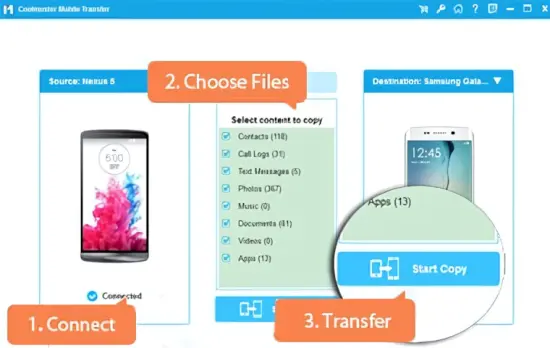
Unlike traditional installers, the portable edition lives on a folder or a USB stick and launches directly without touching the Windows registry. This design makes it ideal for technicians who travel between client PCs, as well as for anyone who prefers a clean system footprint. Once started, the interface detects any connected Android or iOS device, establishes a secure link, and presents a dual‑pane view where source and destination data can be inspected before migration.
The core of the workflow relies on local processing, meaning that all conversion and validation steps happen inside the host computer. No data is uploaded to external servers, and the transfer completes as soon as the two phones finish exchanging packets over USB.
Broad Device Compatibility
Coolmuster Mobile Transfer supports the full range of Android manufacturers—from legacy Samsung models to the newest releases from Huawei, Motorola, and beyond. It adapts to the various connection protocols each vendor implements, ensuring that even devices with heavily customized skins can be read.
On the Apple side, the software works with every iPhone generation, as well as iPads and iPod Touch units that run supported iOS versions. The program automatically selects the appropriate protocol (such as libimobiledevice or Apple’s own sync channel) based on the device’s firmware, so users never need to manually toggle settings.
- Samsung, Google Pixel, OnePlus, Xiaomi, LG, Sony, ZTE, Motorola, Huawei
- iPhone 4s through iPhone 15 series, iPad Air, iPad Pro, iPod Touch
- Android 4.0 (Ice Cream Sandwich) up to Android 14
- iOS 9 through iOS 17
Data Types That Can Be Migrated
The utility covers virtually every personal data category that typical users care about. Contacts are transferred with full fidelity, preserving names, multiple phone numbers, email addresses, postal details, notes, and even custom fields that some Android launchers allow.
Message histories—including SMS, MMS, and, where possible, third‑party chat logs—are copied while keeping timestamps, sender information, and threading intact. This is especially useful for professionals who need to retain conversation records for compliance or legal reasons.
Call logs, complete with inbound, outbound, and missed entries, migrate together with their associated metadata, allowing the new device to display a seamless call history as if the calls had originally occurred there.
Media libraries—photos, videos, and music—are moved using an integrity‑checking algorithm that validates each file’s checksum and retains EXIF data, GPS tags, and ID3 metadata. Folder structures and album groupings are recreated on the destination when the platform supports them.
E‑book collections in PDF or ePub format also travel across, and the program attempts to preserve reading positions, bookmarks, and annotations, provided the target reading app can interpret those markers.
Cross‑Platform Translation Engine
One of the standout capabilities is the bidirectional bridge between Android and iOS. When moving from Android to iPhone, the software maps contact fields to Apple’s vCard schema, re‑formats message databases into iMessage‑compatible packages, and re‑encodes media files to meet iOS’s strict file‑type expectations.
The reverse direction works in a similar fashion: iOS contacts, messages, and media are unpacked and reshaped to fit Android’s SQLite structures and media store conventions. Throughout this process, the tool strives to keep as much metadata as possible, so users notice minimal differences after the switch.
System Requirements and Performance Tips
Running the portable version only demands a modest Windows environment. A 64‑bit Windows 7 or later installation, at least 2 GB of RAM, and 500 MB of free disk space for the program folder are sufficient. For large media libraries, a USB 3.0 connection is recommended to reduce transfer time.
To achieve optimal speed, users should close other intensive applications, ensure that both devices are fully charged, and enable “USB debugging” on Android devices when prompted. The software provides a progress bar for each data category, allowing users to pause or cancel a specific transfer without affecting the rest of the operation.
Who Will Benefit Most?
The tool is aimed at three primary audiences: individuals swapping phones across ecosystems, IT support staff who need a reliable, installation‑free utility for client machines, and privacy‑focused users who refuse cloud‑based migration services. Because the program never writes to the host registry, it can be used on public computers, corporate laptops, or any system where software installation is prohibited.
While the feature set is extensive, the interface remains straightforward. Users select the source device, tick the data categories they wish to move, pick the target phone, and launch the process. Advanced options—such as selective contact export or custom media folder mapping—are tucked away in a “Settings” pane for power users.