
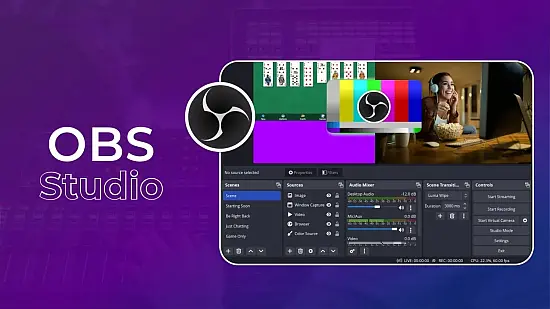
When a Windows‑based creator needs to capture gameplay, a tutorial, or a live talk, a single application that blends video, audio, and on‑screen graphics can save countless minutes of setup. OBS Studio 32.2.2 delivers that blend in a self‑contained package that runs from any folder without touching the host system’s registry.
Because the program is distributed as a portable zip, you can slip it onto a USB stick, launch it on a borrowed laptop, and start streaming within seconds. The core of the experience revolves around arranging visual and auditory elements, then sending the result either to a local file or to a streaming service.
Why creators choose a scene‑centric workflow
OBS organizes every broadcast as a collection of “scenes.” Each scene acts like a virtual canvas where you decide which inputs appear and where they sit. One scene might showcase a full‑screen game capture with a small webcam overlay, while another could present a static “coming soon” screen paired with background music. Switching between these canvases can be bound to keyboard shortcuts, allowing a smooth transition without interrupting the live feed.
The scene model also encourages reuse. A single webcam source can be dropped into multiple layouts, and any change to that source—such as adjusting its size or applying a filter—propagates instantly across every scene that references it. This modularity reduces duplication and keeps the overall setup tidy.
Building a broadcast with sources and layers
Within each scene, you stack “sources” that represent anything from a monitor capture to a local video file. Sources can be resized, rotated, and reordered, giving you the freedom to craft complex visuals. For example, a window capture of a chat client can sit atop a game feed, while a browser‑based alert system floats in a corner.
Layering works like a digital scrapbook: the topmost item obscures anything beneath it, but you can also set blend modes or apply chroma‑keying to make backgrounds disappear. Because every source is independently configurable, you can fine‑tune color correction, cropping, or scaling without affecting the rest of the composition.
Audio handling and built‑in filters
Audio tracks receive as much attention as video tracks. OBS lets you capture a microphone, system sound, and auxiliary inputs on separate channels. Each channel appears in a mixer where you can adjust volume, mute, or route the signal to monitor speakers.
Beyond basic level control, the software ships with a suite of audio filters such as noise suppression, noise gate, and compressor. These tools help tame background hiss, prevent sudden spikes, and keep vocal levels consistent. Applying a filter once to a microphone source automatically benefits every scene that uses that source.
Performance tuning and encoder options
Achieving a stable stream hinges on matching encoder settings to your hardware and internet bandwidth. OBS 32.2.2 exposes both software (x264) and hardware (NVENC, AMD VCE, Intel QSV) encoders, letting you pick the most efficient path for your GPU.
- Select an encoder that matches your GPU generation for optimal speed.
- Set the bitrate just below your upload ceiling to avoid buffering.
- Enable “Keyframe interval” of 2 seconds for most streaming platforms.
- Use the “Preset” slider to balance quality against CPU load.
- Activate “Dynamic bitrate” if your connection fluctuates frequently.
When recording locally, you can choose formats such as MKV or MP4 and specify a maximum file size. The same encoder controls apply, so a low‑power laptop can still produce crisp 1080p60 recordings by lowering the preset or switching to a software encoder.
System requirements and portable deployment
OBS Studio 32.2.2 runs on Windows 10 (64‑bit) or newer. Minimum specifications include a dual‑core CPU, 4 GB RAM, and a DirectX 11‑compatible graphics card. For demanding 1080p60 streams with multiple overlays, a quad‑core CPU, 8 GB RAM, and a recent GPU are recommended.
Because the portable version stores all configuration files alongside the executable, you can copy the entire folder to an external drive and launch it on any compatible machine. No installer runs, and the program leaves no traces in the system registry, making it ideal for on‑the‑go creators or environments with strict admin policies.
Many streamers compare OBS to alternatives such as Streamlabs OBS, XSplit, or vMix. While those tools offer proprietary overlays or integrated donation handling, OBS remains the most flexible and community‑driven option, especially when you need a lightweight, portable solution.