
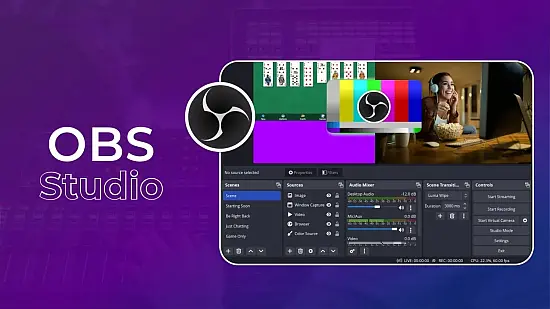
If you need a flexible, no‑cost solution for capturing gameplay, webinars, or any on‑screen activity, OBS Studio 32.2.2 offers a full‑featured studio environment that runs straight from a USB stick. Because it stores all settings inside its own folder, you can move the program between PCs without leaving traces in the registry.
The application targets creators who want real‑time composition – whether you are broadcasting to Twitch, recording tutorials for YouTube, or stitching together a multi‑camera interview. Its modular design lets you start with a single screen capture and expand to layered productions that include webcam feeds, text captions, and browser‑based alerts.
Building Live Layouts with Scenes
At the heart of OBS Studio lies the concept of scenes. A scene is a named collection of sources that defines exactly what the audience will see at any moment. You might create a “Gameplay” scene that pairs a game capture on the left with a small webcam window on the right, while a “Starting Soon” scene replaces both with a static graphic and a countdown timer.
Switching between scenes can be done with mouse clicks, hotkeys, or even external devices such as stream decks. This instant swapping lets you keep the broadcast fluid, for example fading from a full‑screen game view to a close‑up facecam when a critical moment occurs.
Managing Audio Tracks and Filters
Audio handling in OBS Studio is as granular as its video counterpart. Each microphone, desktop sound, or auxiliary input appears as an independent track that you can mute, adjust gain, or route to separate output mixes. Adding filters to these tracks cleans up the signal before it reaches viewers.
- Noise suppression – reduces constant background hiss
- Noise gate – silences mic when you stop speaking
- Compressor – evens out loud peaks
- Equalizer – shapes frequency response for clarity
- Limiter – prevents sudden volume spikes
By stacking these filters, streamers can achieve studio‑quality voice tracks even in noisy environments. The audio mixer also displays real‑time levels, helping you spot clipping before it reaches the stream.
Encoding Choices for Smooth Broadcasts
When OBS Studio sends video to a platform, it must compress the raw frames into a streamable format. Version 32.2.2 provides access to several hardware and software encoders, allowing you to balance visual fidelity against CPU load and upload bandwidth.
- x264 – reliable software encoder, works on any CPU
- NVENC – NVIDIA GPU‑based encoder, offloads work from the CPU
- AMD VCE – hardware encoder for Radeon cards
- Intel QSV – Quick Sync Video for Intel integrated graphics
- Apple VT – hardware encoder on macOS (when running via compatibility layer)
Adjusting bitrate, keyframe interval, and preset options lets you tailor the output to a 4 Mbps home connection or a 15 Mbps dedicated line. The encoder selection screen also shows real‑time CPU/GPU usage, so you can avoid overtaxing your machine.
Integrating Dynamic Overlays
Modern streams rely on live overlays to display alerts, chat, or subscriber counts. OBS Studio treats a browser source as any other element, meaning you can load HTML/CSS widgets that update automatically. This capability removes the need to manually edit graphics during a broadcast.
Because overlays are just sources, you can apply the same transformations and filters as you would to video clips – scaling, cropping, or adding a color key. The result is a cohesive look where all components react to the same scene changes.
Portable Workflow and System Demands
Running OBS Studio from a portable drive eliminates the typical installation steps and leaves no registry entries behind. The program reads its configuration from the same folder, making it easy to copy settings from one PC to another.
The minimum requirements are modest: a 64‑bit Windows 10/11 OS, a dual‑core CPU, and a GPU that supports DirectX 11. For complex scenes with multiple high‑resolution sources, a quad‑core processor and a dedicated graphics card are recommended to keep frame rates steady.
While OBS Studio covers most use cases, some creators still compare it to alternatives like Streamlabs or XSplit, which bundle additional widgets or a more guided setup. Those tools may appeal to beginners, but they often lack the same depth of encoder control and scene‑nesting flexibility that OBS provides.